For shared knowledge
Notion
Authorize your workspace, then send the current chat to the AI Chats database with its title, source, platform, and formatted content.
Read the guideChrome extensionLocal-first export
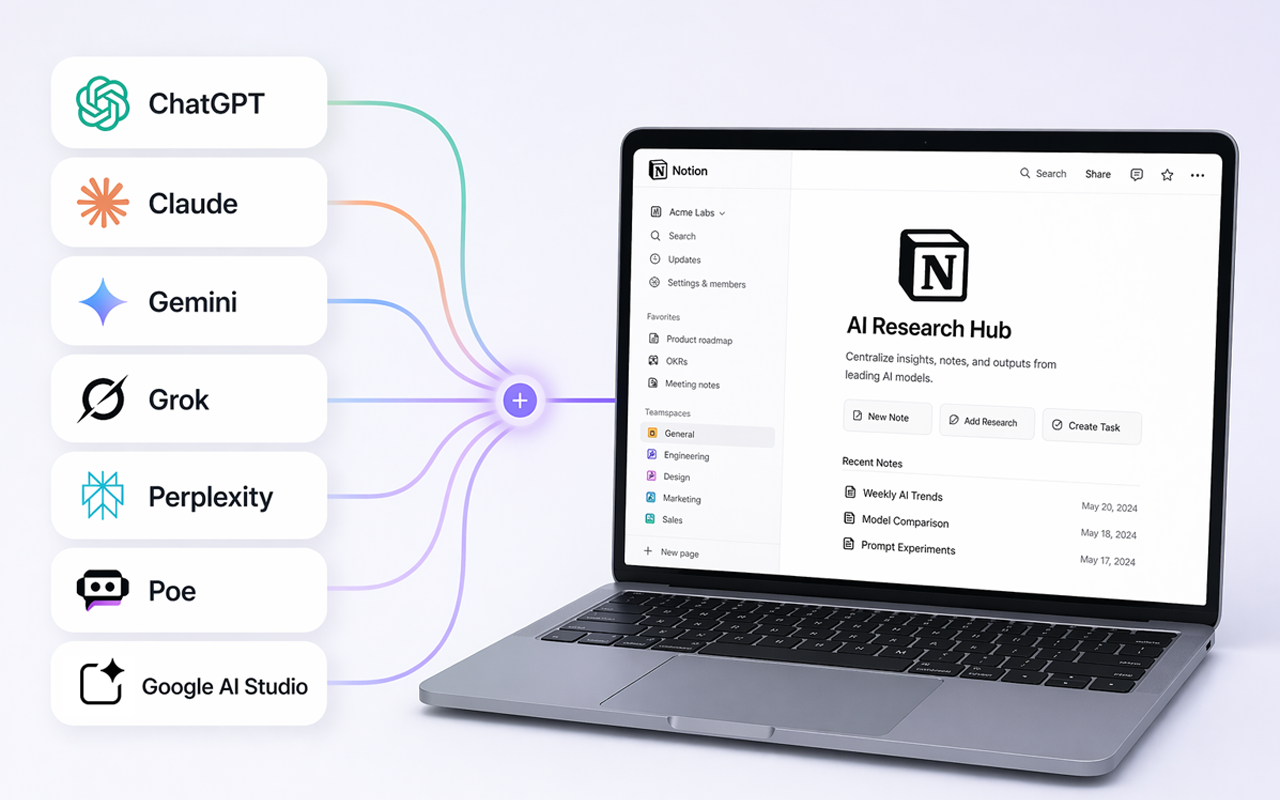
Download a finished conversation as Markdown, write it directly to an Obsidian vault, or sync it to Notion. The same workflow works across ten AI platforms.
Local Markdown export needs no account or Notion connection.
Works where you already think
Video walkthrough
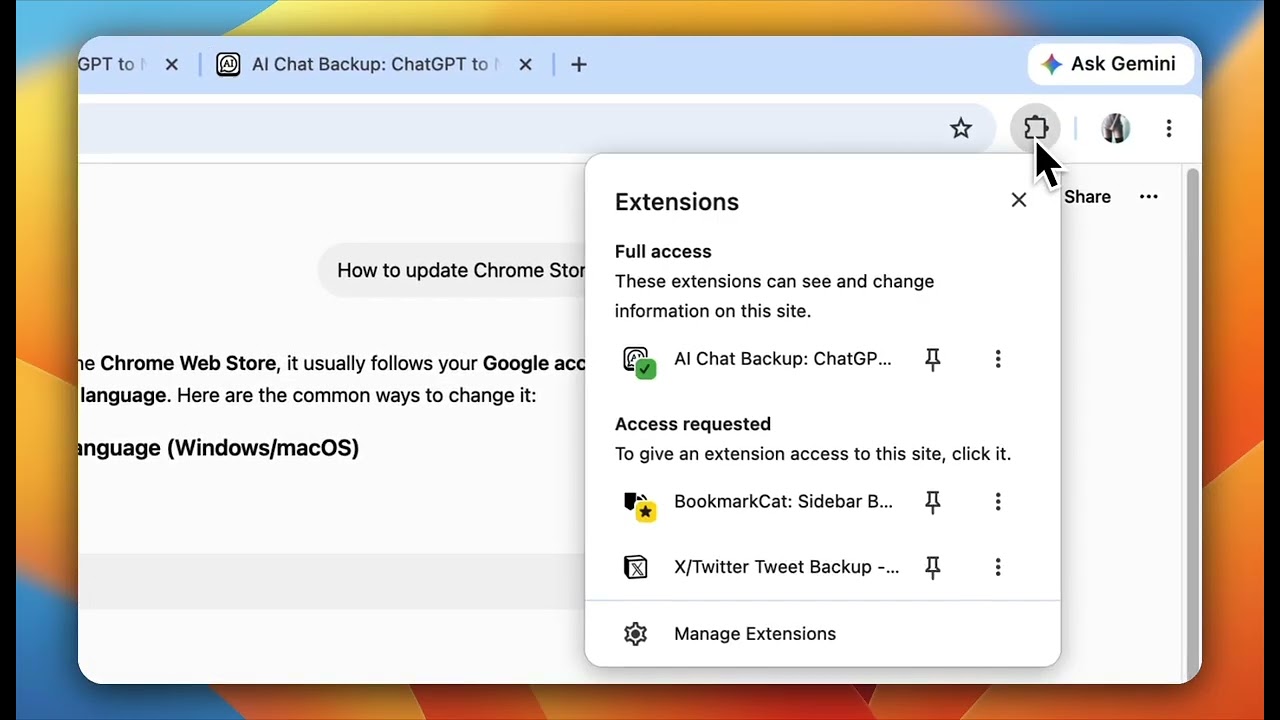
Watch this brief video tutorial to see how easily AI Chat Backup exports your conversations, structures data, and connects with Notion, Markdown, or Obsidian.
Choose the destination
Keep team knowledge in Notion, own a portable Markdown file, or place the note directly inside your Obsidian vault.
For shared knowledge
Authorize your workspace, then send the current chat to the AI Chats database with its title, source, platform, and formatted content.
Read the guideFor portability
Download a plain-text file you can search, edit, version, or move. Optional YAML fields add title, date, source, and custom metadata.
Read the guideFor personal knowledge
Select a folder inside your vault once. Future exports write directly to that folder when Chrome has permission.
Read the guideThree deliberate steps
Three steps, with no copy-and-paste cleanup.
Install AI Chat Backup from the Chrome Web Store so its actions stay one click away.
Wait for the response to finish loading. The extension detects the supported platform in the active tab.
Download Markdown, write to your selected local folder, or send the chat to an authorized Notion workspace.
Supported Integration Matrix
Click any active link in the matrix below to open the dedicated integration guide for your workflow.
| AI Platform | Sync to Notion | Export to Obsidian | Export to Markdown |
|---|---|---|---|
| ChatGPT | Notion Guide | Obsidian Guide | Markdown Guide |
| Claude | Notion Guide | Obsidian Guide | Direct (Export Chat) |
| Gemini | Notion Guide | Obsidian Guide | Direct (Export Chat) |
| DeepSeek | Notion Guide | Supported | Direct (Export Chat) |
| Kimi | Notion Guide | Supported | Direct (Export Chat) |
| Perplexity | Notion Guide | Obsidian Guide | Direct (Export Chat) |
| Google AI Studio | Supported | Supported | Supported |
| Grok | Supported | Supported | Supported |
| Poe | Supported | Supported | Supported |
| Venice | Supported | Supported | Supported |
Practical guides
Follow the exact controls used by the current extension, including folder permissions, Notion authorization, and batch limits.
Use Cases & Stories
Read about real workflows, solving data export limitations, and organizing notes for research or software teams.
Before you export
No. Export Chat creates Markdown locally. You only need to authorize Notion when you want workspace sync.
ChatGPT, Claude, Gemini, DeepSeek, Kimi, Google AI Studio, Perplexity, Poe, Grok, and Venice are supported. Platform interface changes can temporarily affect extraction.
It extracts content from the active supported chat when you choose Export Chat, Sync to Notion, or start a ChatGPT batch sync.
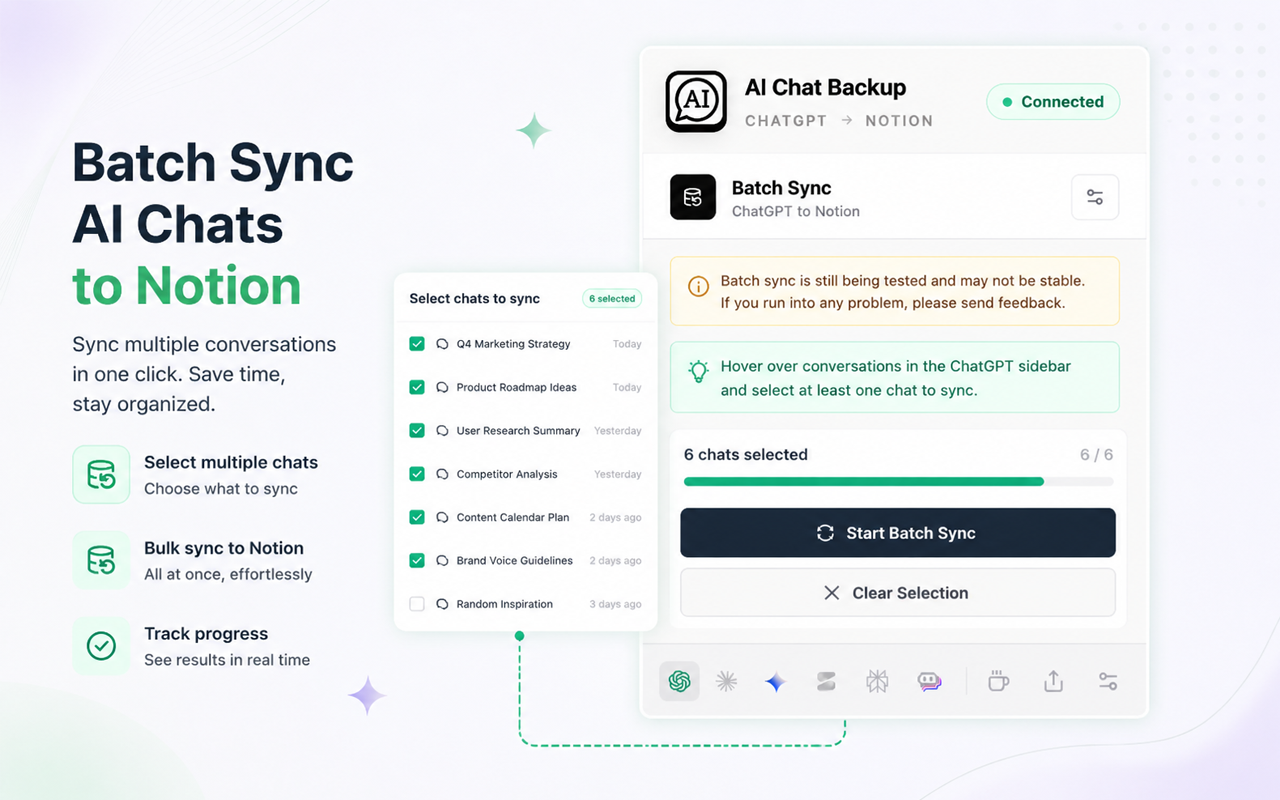
Yes. The Chrome side panel lets you select conversations from the ChatGPT sidebar and sync up to six per batch.
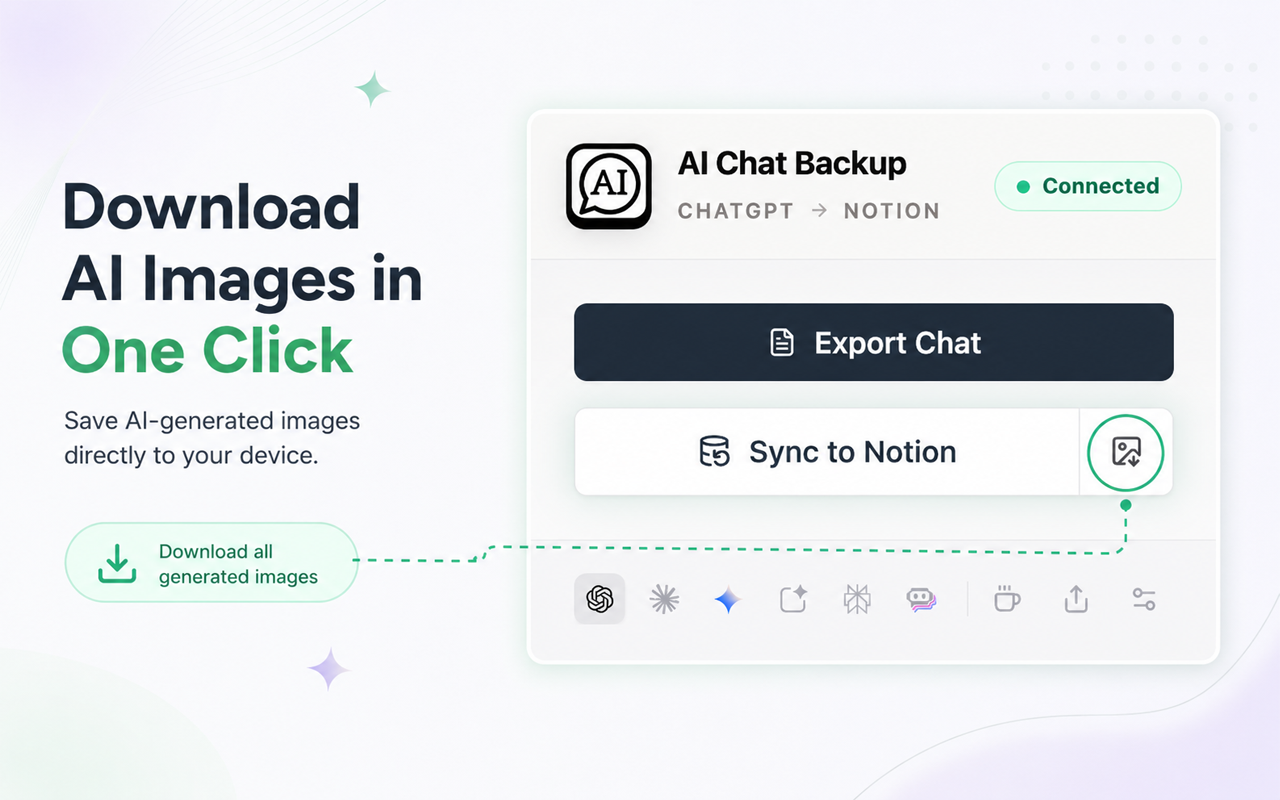
Yes. For ChatGPT and Gemini conversations, select Download generated images to save image files locally. ChatGPT and Gemini image sync to Notion is supported when the source image can be read and uploaded.
Keep the useful part
Add AI Chat Backup, open a finished AI conversation, and save it in the format you control.
Add AI Chat Backup